- In the application from which you want to print, select File > Print (or press Ctrl + P).
- Select PublicPrint as your printer.
- Open the Ricoh properties window:
- In traditional desktop apps (e.g., Word, Acrobat, Excel): Click Printer Properties (or Preferences) next to the printer name.
- In web browsers or modern apps (e.g., Chrome, Edge): Click More settings, then click Print using system dialog... (or Preferences).
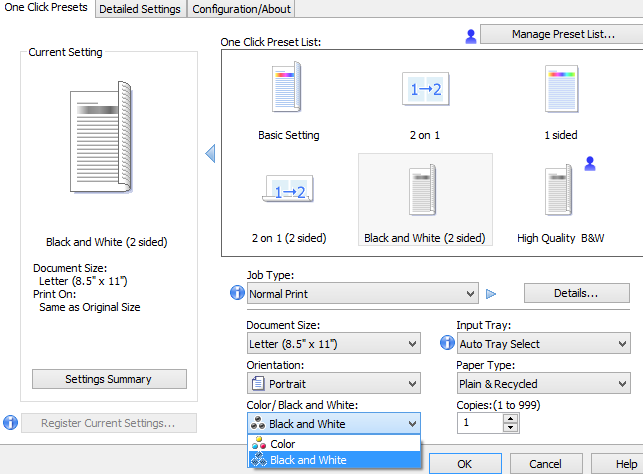
- In the Ricoh Print Dialogue window, locate the Color / Black and White drop-down menu at the bottom left of the settings list.
- Select Color or Black and White.
- Click OK, then click Print.
- Click OK, then click Print.
For further assistance, place a printer service request via the TopDesk self-service technology support portal or contact the Helpline at 740-427-5700/Helpline@kenyon.edu.