Troubleshooting K-Card Photo Upload Issues
If you are having trouble submitting your photo to kcard.kenyon.edu, use the troubleshooting steps below to resolve the most common issues.1. Issue: The K-Card Portal Will Not Open on Mobile
- Symptom: The kcard.kenyon.edu page fails to load, times out, or displays a connection error when accessing it from a smartphone or tablet.
- Cause: The K-Card portal works best when accessed on a desktop web browser or when connected via Kenyon's campus network/VPN on mobile devices.
- Solution:
- Switch to a desktop computer (Mac or Windows) using Google Chrome.
- If you must use a mobile device, make sure you are connected to the campus Wi-Fi (Kenyon-Devices / eduroam) or use a desktop browser.
2. Issue: Upload Window Closes Instantly Without Saving
- Symptom: You browse and select a photo file, but after clicking open/select, the pop-up window closes immediately and the photo does not update.
- Cause: The portal allows you to select any file format during browsing, but unsaved or unsupported formats (such as Apple's .HEIC format default on iPhones, .webp, or extremely large high-resolution images) will silently fail and close the dialog window.
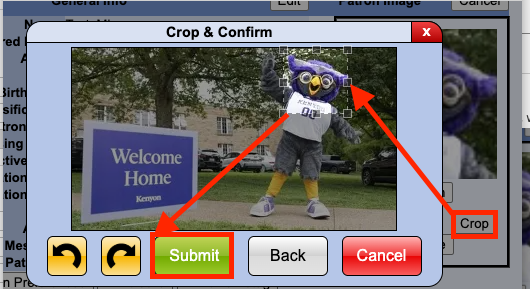
Recommended Fix: Use the Built-In Crop Tool
Using the portal's built-in image cropping feature forces the portal to convert and save your photo in the correct format and file size automatically—even if you upload a large iPhone photo.1. Select Your Photo File:
Log into kcard.kenyon.edu, navigate to the photo submission screen, and click Browse to select your image.
Verification: The Crop & Confirm preview dialog window appears showing your image.
2. Adjust the Crop Box:
Click and drag the square cropping handles over your face/headshot to select your photo boundary.
Verification: The selection box highlights your face clearly within the frame.
3. Apply Crop and Submit:
Click the Crop button to crop the selection, then click the green Submit button to save.
Verification: The status message confirms your photo was successfully uploaded and saved to your Patron record.